Mastercam is packed with powerful capabilities, but sometimes it is the small, often overlooked features that deliver the biggest productivity gains.
When you are programming every day, shaving minutes off repetitive tasks, reducing clicks, or avoiding rework adds up fast. The good news? Mastercam has dozens of built‑in tools designed to do exactly that.
This post takes a closer look at a few under‑utilized Mastercam features that can make your day‑to‑day programming faster, cleaner, and more efficient.
Viewsheets: Save Your Setup & Your Sanity
Viewsheets are one of the most under‑used and most powerful tools in Mastercam.
Think of viewsheets as snapshots of your workspace. They allow you to save and recall a wide range of settings, including:
- Levels and colors
- Planes and views
- Rotation controller point settings
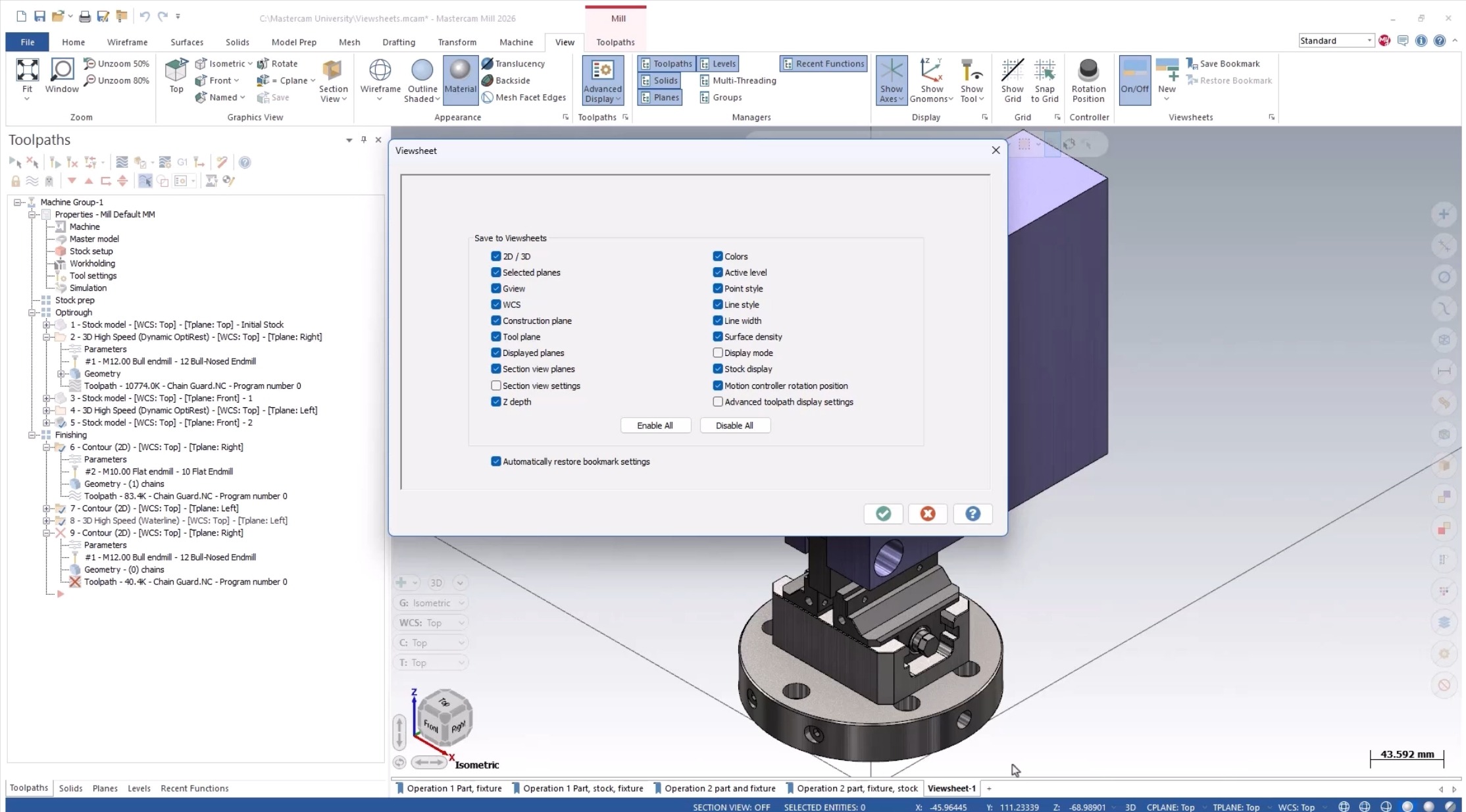
Instead of manually resetting your environment every time you switch tasks, viewsheets let you return to a known, trusted setup instantly.
How to use them:
- Turn on Viewsheets from the View tab.
- Click the plus (+) button to create a new viewsheet.
- Right‑click a viewsheet to save a bookmark of your current settings.
- Use Viewsheet Settings to control exactly what gets saved.
The result? Less setup time, fewer mistakes, and a more predictable workflow, especially on complex parts.
Verify Smarter with Stock Models
When verifying toolpaths, you do not always need to replay everything from the beginning, especially if earlier operations are already validated.
Here is a smarter approach:
- Add a stock model after the toolpaths you are confident in.
- When sending toolpaths to Verify, include that stock model in your selection.
By doing this, Mastercam temporarily replaces the machine group’s setup stock with your stock model during verification. You get accurate results without re‑verifying operations you have already approved.
It is a small change that can save a surprising amount of time on multi‑stage programs.
Yellow Fields Are More Powerful Than They Look
Ever notice certain fields in Mastercam highlighted in yellow? These are calculable fields, and they are doing more than just accepting numbers. Right‑click one of these fields and you will unlock:
- Selection options
- Built‑in math
- Unit conversions
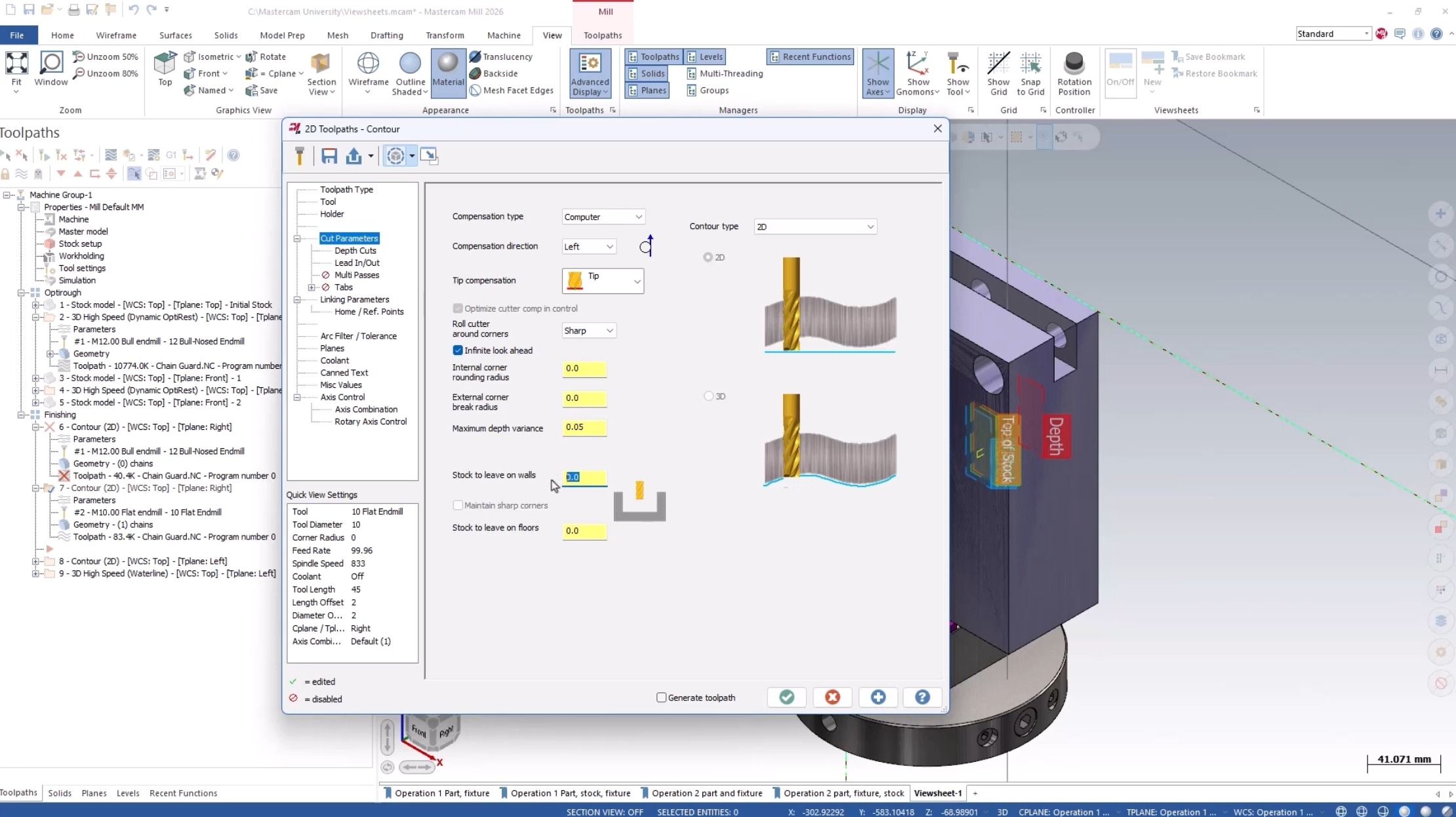
For example, even in a metric file, you can type 1/8in, press Enter, and Mastercam will automatically convert it to metric. No calculator. No guesswork. Just faster, more flexible input exactly when you need it.
Do Not Ignore Function Prompts
When you are working inside a function, Mastercam often displays function prompts on screen. It is easy to dismiss them as background noise, but these prompts are quietly doing important work.
They can:
- Guide you through the next step in a process
- Offer tips on making the correct selection
- Reduce trial‑and‑error during setup
For best results, keep these prompts positioned within the main graphics area so they are always visible. A quick glance at the right moment can prevent unnecessary backtracking.
Automatically Load the Right Tool Library
If you program for the same machine regularly, there is no reason to manually load your tool library every time. Mastercam allows you to associate a default tool library directly with a machine definition.
Here is how:
- Load your machine.
- Go to the Machine tab and open the Machine Definition.
- Open General Machine Parameters.
- Navigate to the Tool and Material Libraries tab.
- Select the default tool library for that machine.
The next time you load the machine definition, your preferred library is ready to go, saving time and keeping your tooling consistent.
Speed Up Solid Chaining with Alternative Methods
If you are chaining solids the same way every time, you might be working harder than necessary.
Inside the Chaining Manager, explore the alternative chaining methods toward the bottom of the list. These options can dramatically reduce selection time in the right scenarios.
For example:
- Use shared outer edges
- Select a face instead of individual edges
In many cases, Mastercam will automatically chain connected geometry (such as walls attached to floors) using the correct climb cut direction. The result is faster chaining with fewer clicks and cleaner results.
Small Features. Real Efficiency Gains.
Mastercam’s strength is not just in its headline features, it is in the thoughtful details designed to support real‑world workflows.
By taking advantage of tools like viewsheets, calculable fields, smarter verification, and advanced chaining options, you can spend less time managing software and more time focused on making great parts.
Which of These Features Surprised You the Most?
Join the conversation on the Mastercam customer forum to connect with other users, share tips, and discover even more small features that make a big impact.
Learn about even more features that can help you personally with Mastercam Product Trainings, which offer hands‑on guidance and best practices to help you maximize your results.