In manufacturing, creating additional geometry is often a necessary step in preparing parts for machining. Whether you are designing fixtures, adding mounting components, or generating supporting geometry to control toolpaths, having a quick and efficient way to extract model edges can save valuable programming time.
That is where the Curve One Edge function shines.
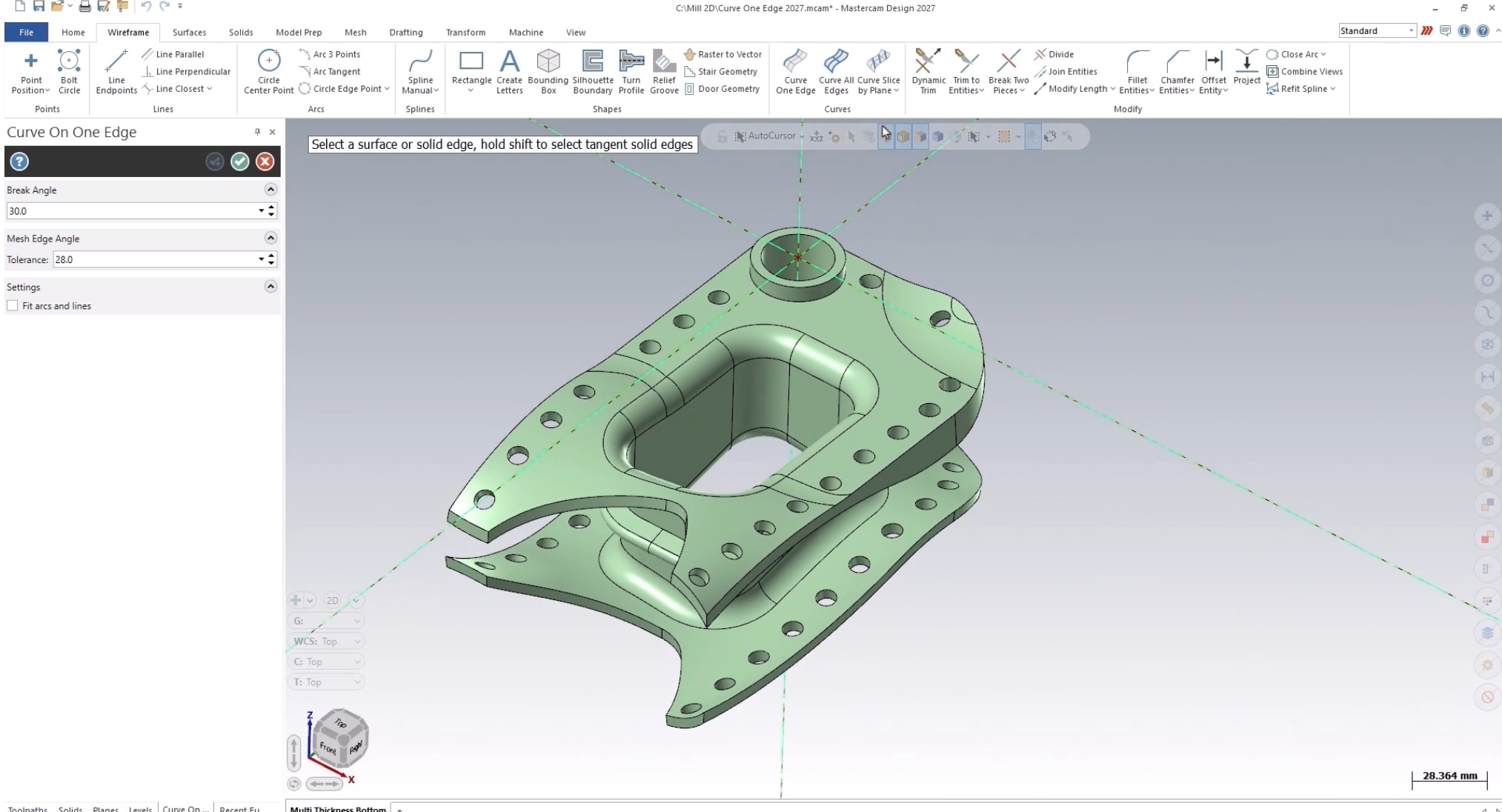
Simple, intuitive, and incredibly versatile, Curve One Edge allows users to rapidly generate wireframe geometry directly from existing model features, making fixture creation and other downstream tasks significantly easier.
Building Fixture Profiles in Seconds
Imagine you need to create a fixture for a part and require a set of profiles to extrude into supporting geometry.
The process begins by positioning a construction plane in 2D mode, with the Z-value located just beneath the part. From there, simply navigate to the Wireframe tab and launch the Curve One Edge function.
With a single click, selected model edges are converted into wireframe entities. Because the construction plane is positioned below the part, the resulting wireframe is projected directly onto that plane, creating ideal profiles for fixture design.
Even better, the function is entirely dynamic. If you select geometry by mistake (or simply change your mind) clicking the entities again instantly removes them. No cleanup is required.
Smart Selection with AutoCursor
One of the most powerful aspects of Curve on Edge is how seamlessly it works with AutoCursor settings.
By enabling only Edge Selection, users can:
- Select individual edges one at a time
- Hold the Shift key and select an edge to automatically capture all tangent edges
- Quickly refine selections without complicated workflows
Need to remove a selected entity? Simply select it again.
This dynamic behavior keeps the workflow fluid and efficient, allowing users to experiment freely without fear of creating unnecessary geometry.
Capture Entire Loops and Faces Effortlessly
Curve One Edge goes beyond individual edge selection.
When Loop Selection is enabled, users can instantly create wireframe geometry from any closed loop that exists on the model. This is especially useful when creating fixture boundaries, pocket outlines, or reference geometry.
Switching to Face Selection expands the functionality even further. Selecting a face automatically generates wireframe geometry for every edge that defines that face.
These options dramatically reduce the number of picks required and make extracting complex geometry remarkably fast.
Dynamic and Flexible by Design
One of the standout features of Curve One Edge is its flexibility.
The system intelligently recognizes various combinations of:
- Edge selections
- Loop selections
- Face selections
Users can freely mix selection methods within the same operation while dynamically adding or removing entities as needed.
Additionally, the function supports both 2D and 3D construction modes, giving programmers and designers the freedom to generate geometry exactly where and how they need it.
More Than Just Fixture Creation
While fixture design is a common application, Curve One Edge extends far beyond creating fixture profiles.
The tool is equally valuable for:
- Generating toolpath control geometry
- Creating construction wireframes
- Building reference curves
- Preparing support structures
- Developing mounting features
- Streamlining model modifications
Because the function supports solids, surfaces, and mesh entities, it integrates seamlessly into a wide range of manufacturing and design workflows.
A Tool You Will Use Again and Again
The best tools are often the simplest, and Curve One Edge is a perfect example. Its intuitive selection methods, dynamic editing capabilities, and broad geometry support make it an indispensable feature for anyone working with manufacturing models.
When you need to create additional geometry quickly and accurately, Curve One Edge eliminates unnecessary steps and keeps your workflow moving.
Whether you are building fixtures, defining toolpaths, or creating construction geometry, it should be one of the first tools you reach for.
Pro Tip: Before starting a Curve One Edge operation, customize your AutoCursor settings to match your intended workflow. Limiting available selection types can dramatically speed up geometry creation and improve selection accuracy.
▶ Watch the full Show Me video on myMastercam.
Learn about even more features that can help you personally with Mastercam Product Trainings, which offer hands‑on guidance and best practices to help you maximize your results.