First-time setups rarely fail due to insufficient operator skill. Delays occur when process confidence is low. Any ambiguity in setup documentation introduces decision points, and each clarification required increases setup time on the shop floor.
One simple way to remove uncertainty and help machinists move faster is by pairing setup sheets with Mastercam presentation files. These files give machinists a clear, visual understanding of what the program will do without putting your data at risk.
Let’s take a closer look at how presentation files work, why they matter, and how to create them.
What is a Mastercam Presentation File?
A Mastercam presentation file allows machinists to view a simulation of the programmed toolpaths directly on the shop floor using any standard Windows computer.
Presentation files are saved as standard EXE files, making them easy to open with a simple double click. Once launched, a Verify window appears with all the familiar visualization tools machinists already know.
What they can do:
- Watch the program run step by step
- See how tools enter and exit the cut
- Verify the relationship between stock, part, and workholding
- Build confidence before the first cycle start
What they cannot do:
- Modify toolpaths
- Change feeds or speeds
- Make unauthorized edits
That balance is exactly what makes presentation files such a powerful addition to your setup process.
Why Presentation Files Matter on the Shop Floor
Setup sheets and tool lists are essential, but they are still static. A presentation file brings the program to life.
By letting machinists see the simulation:
- Uncertainty is reduced before the machine ever runs
- Potential issues are spotted earlier, when they’re easier to fix
- Communication improves between programming and the shop floor
- Confidence increases, especially on first-time setups
Just as important, presentation files help control data integrity. Since machinists can’t make changes, programmers maintain ownership of the process while still giving machinists full visibility into what to expect.
If something looks off, the machinist can flag it and work directly with the programmer before cutting metal.
How to Create a Presentation File from Verify
Creating a presentation file is straightforward and fits naturally into your existing workflow.
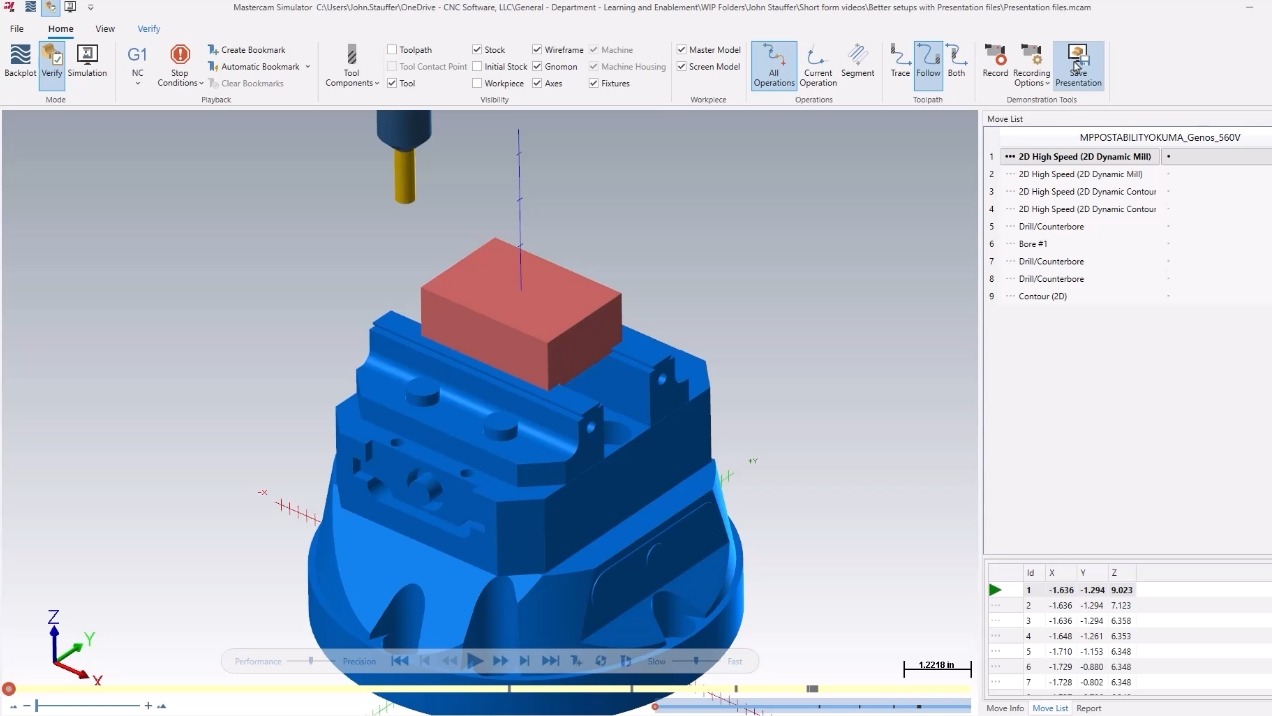
- Open your program in Verify
- From the Home tab, select Save Presentation
- Choose where to save the file
- Name the file clearly (use a job number or part number and include operation identifier when possible)
- Save the file
That’s it. The presentation file is now ready to be opened on any compatible Windows-based machine, no Mastercam installation required.
Creating Presentation Files from Simulation
If you are using external post-enabled simulation, you can create presentation files from there as well.
Here is how:
- Open the Simulation environment
- Go to the File tab
- Select Save Export
- Choose Create Presentation
- (Optional) Set a custom window name for the simulation viewer
- Save the file using the same naming and storage best practices
The result is the same: a secure, view-only simulation that mirrors exactly what the machine will run.
Confidence Cuts Time
When machinists understand what is coming, they move faster. When programmers know their intent is clearly communicated, rework drops. Presentation files bridge that gap, turning setup sheets into a complete, visual reference.
They are easy to create.
They protect your data.
They help your team move forward with confidence.
For more information, watch the full Show Me video on myMastercam. You can improve your setups even further with Mastercam Product Trainings, which offer hands‑on guidance and best practices to help you maximize your results.