Every new release of Mastercam introduces powerful features, performance improvements, and workflow upgrades. Before upgrading, it’s essential to migrate your files the right way for a smooth transition.
Whether you work alone or with a team, the Mastercam Migration Wizard makes updating your files simple. Here’s how to use it and why it matters.
Why Migration Matters
Upgrading Mastercam is more than just installing new software. It is about protecting your customizations, libraries, and settings for an efficient workflow. The Migration Wizard helps you:
- Transfer tool libraries, machine definitions, control definitions, post files, and simulation files from your shared Mastercam folder.
- Preserve personal settings such as workspace layouts, key mappings, and custom interface tweaks from your My Mastercam folder.
Step-by-Step: Using the Migration Wizard
- Launch the Wizard
Open your new Mastercam installation. Go to the File menu, select Convert, and then choose Migration Wizard. For faster and more flexible results, choose Advanced mode.
- Migrate Shared Files
Shared files are often used across a network. If you’re the first person migrating, proceed with this step. Otherwise, skip and follow the network setup instructions later.
- Migrate Personal Files
This step covers your individual settings and interface preferences. Make sure the destination folder is local and unique to you.
- Select File Types
Deselect part files to speed things up—they can be opened directly in the new Mastercam version. Also, uncheck any file types you don’t use, such as Wire EDM files if they’re not needed.
- Choose Your Source Version
Select the source version you’re migrating from and confirm your selections.
- Handle Duplicate Files
If prompted, choose to replace existing files so your custom setups override the default settings.
- Network Setup (if applicable)
If you’re part of a network, update the shared Mastercam folder location in your configuration settings. Always use a new, unique folder—not one inside an older version’s folder.
Join Us for the Next Mastercam Webinar!
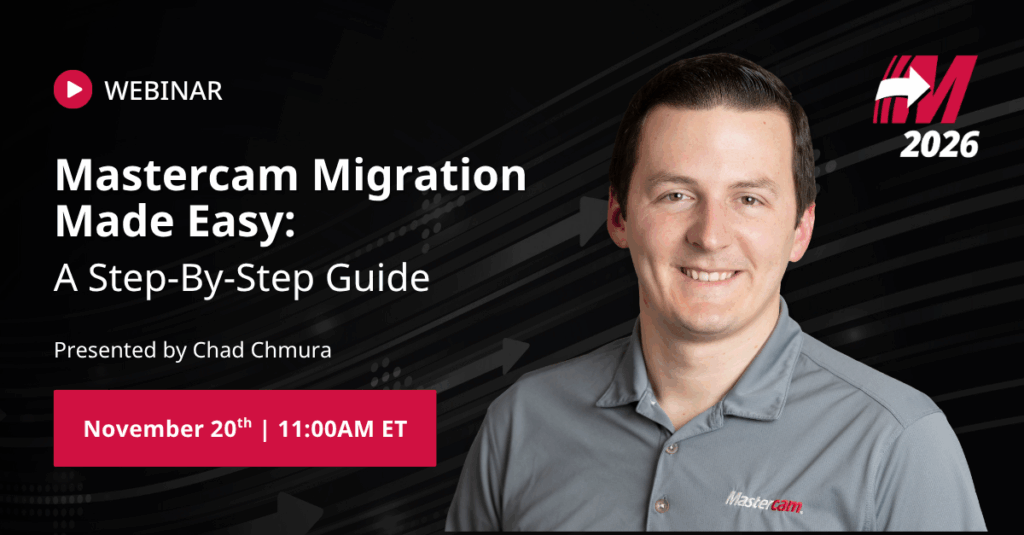
Want to see the Migration Wizard in action or discover the latest Mastercam features? Join our next webinar on November 20th to get expert tips, ask questions live, and keep your skills ahead of the curve.
We hope to see you there!